
Whenever Asset HR brings on a New Client, there is always going to be the need to train and navigate employee login issues. Below will outline helpful tips to identify the potential issue, and remedy whatever issues may arise when new clients are logging in for the first time.
- The first couple questions you want to ask when you receive an employee login error is to confirm the correct URL, as well as the correct email address for the username. When dealing with Employee Logins, you will want to direct them to the Adaptive Employee Experience Link which will be provided here: Asset HR - Adaptive View Link
- You may also navigate to the employee in questions General Page to confirm the correct email address associated with their isolved Account.
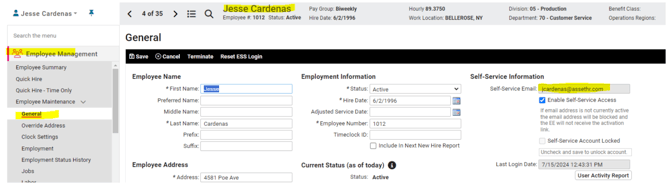
-
If you are dealing with an Admin Login issue, they will have to be in Classic View to access their Admin Account. If an Admin receives an error when logging in and you have confirmed that this is the correct email address under Security > Client Users and this email is different than their employee Self-Service Account, they may be trying to access their Admin Account using the AEE Employee Link. Admins will want to use the Classic isolved Link to login: Asset HR - Classic View Login
-
There may also be instances where employees need to change their mobile number to receive the verification for their login attempt. They can update this themselves under Profile > Authentication Settings

-
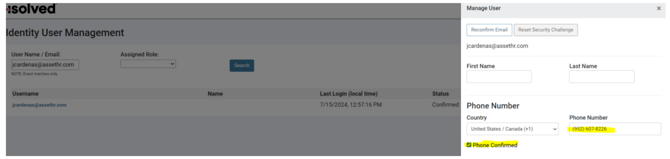
In some instances, Employees will need to have Asset HR change the phone number associated with the verification process because the employee does not have access to the current email address associated with the account. In this instance, us at Asset HR can navigate to https://identity.myisolved.com/Admin/Users and select the Manage Users Tab under Administration

-
From here, you can enter the email address of the employee and update their phone number for verification. Ensure that the “Phone Number Confirmed” box is checked when updating the mobile number.
-
Lastly, if an Employee is still having difficulties logging in, you wall want to ensure their account was confirmed on the Identity Server. You can check this again at https://identity.myisolved.com/Admin/Users.

-
If the Account states “Confirmed” the employee will be able to login into the account. If the status says, “Pending Confirmation” you will want to resend the “Reconfirm Email” Link
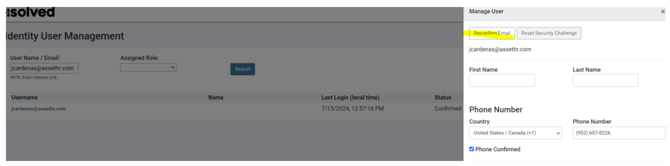
If the status says, “Pending Registration” the Employee will want to navigate to https://identity.myisolved.com/Account/Login?returnUrl=%2F and select “Register a New Account”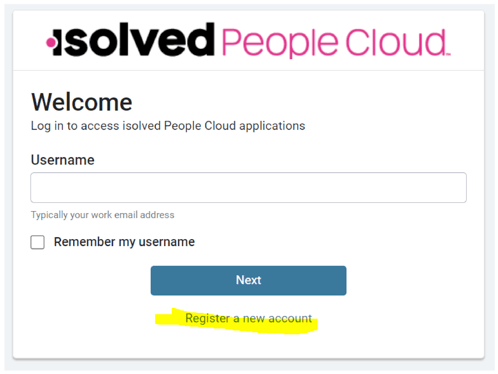
The Employee will want to use the same email address used for the onboarding process/same email address that is in isolved.
All in all, these are some of the most common troubleshooting scenarios you will run into, but sometimes the issue may need more research done on the back end. Do not be afraid to tell the client that you will continue to work in the background and will update when a resolution is found. Clients want to be heard, and the simple gesture of acknowledging their issue will a lot of times put their mind at ease.